Why These Concepts Connect
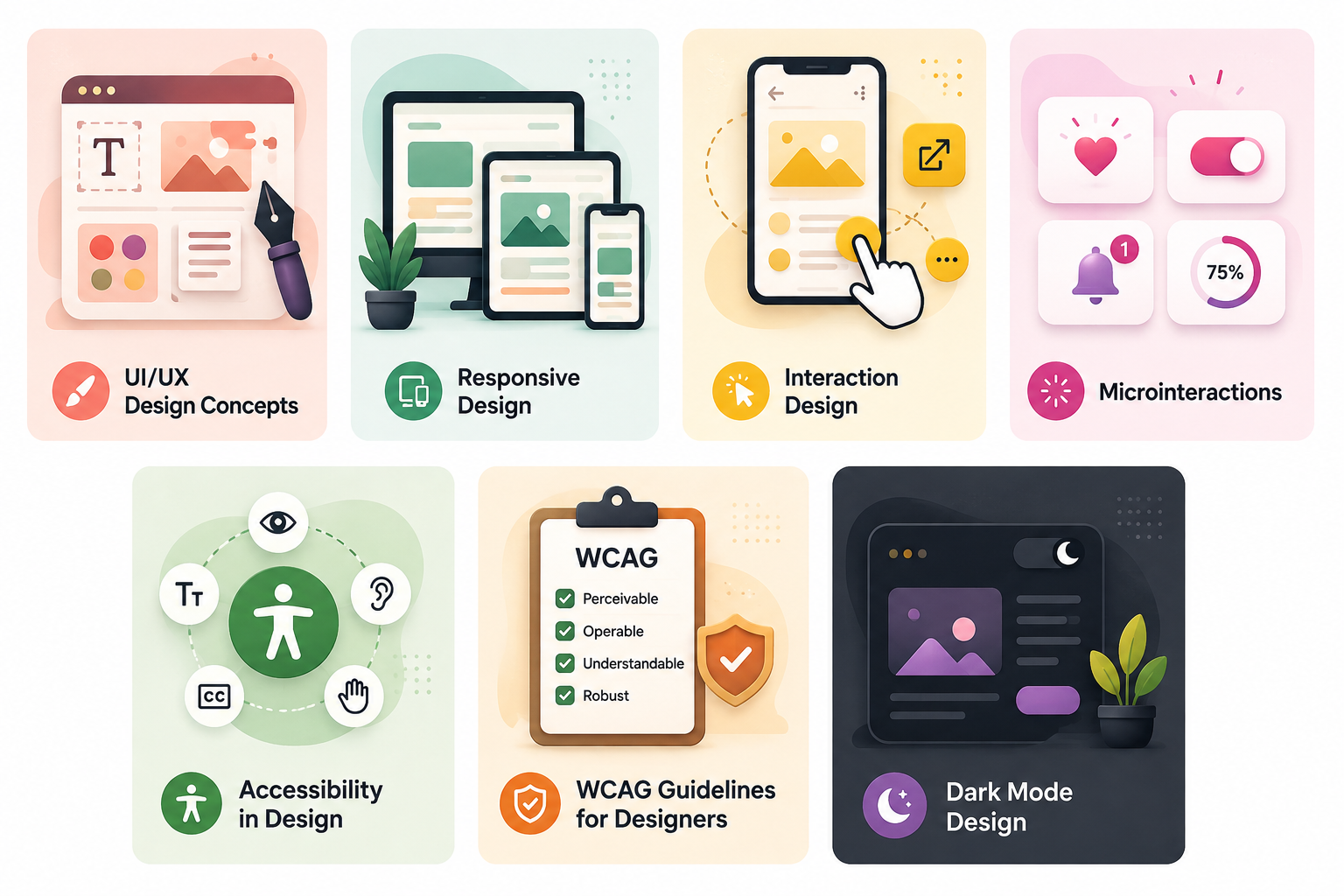
UI/UX design draws on a wide body of knowledge that spans psychology, visual design, engineering, and accessibility. Most designers learn these concepts one at a time, in isolation, and then spend years understanding how they relate to each other. A product that excels at one but neglects another consistently underperforms. Responsive design without accessibility excludes users with disabilities. Good colour theory applied without contrast awareness creates beautiful interfaces that fail WCAG. Microinteractions without motion sensitivity considerations can cause genuine harm to users with vestibular conditions.
This guide covers the core concepts of modern UI/UX design in enough depth to be genuinely useful to practitioners at every level. Each concept is explained on its own terms and in relation to the others it connects to most directly.
Responsive Design
Responsive design is the approach of designing and building web interfaces that adapt their layout, content, and interaction patterns to fit the screen size and capabilities of whatever device is being used. The term was coined by Ethan Marcotte in 2010 and has since become the default expectation for every web experience. A site that requires horizontal scrolling on a mobile device, that presents text too small to read without zooming, or that shows a desktop layout unchanged on a 375px screen is not responsive.
Responsive design rests on three technical foundations. Fluid grids use percentage-based column widths rather than fixed pixel values so the layout proportions are maintained across all screen sizes. Flexible images scale within their containers rather than overflowing them or appearing at a fixed size that breaks the layout. CSS media queries apply different layout rules at defined breakpoints, typically corresponding to mobile, tablet, and desktop viewport widths, so the design does not just shrink but genuinely restructures itself for each context.
The mobile-first approach, originally advocated by Luke Wroblewski, reverses the traditional design order. Instead of designing for desktop and then adapting down to mobile, designers begin with the most constrained context: the small screen with limited space, slower connections, and touch as the primary input method. Starting here forces prioritisation. Every element on the screen has to earn its place when there is no space to waste. The desktop version then adds complexity rather than removing it, which produces a more considered final product at every screen size.
Responsive Design Element What It Does Common Mistake Fluid grid Layout columns scale proportionally with viewport Fixed pixel widths that overflow on small screens Media queries Apply different CSS rules at defined breakpoints Too few breakpoints leaving mid-size screens unsupported Flexible images Images scale within their container without overflowing Images with fixed widths breaking layout on mobile Touch targets Interactive elements are large enough for reliable tapping Buttons under 44px that cause frequent mis-taps Content reflow Content remains usable at 400% zoom without horizontal scroll Disabling zoom with meta tags, violating WCAG reflow criteria Relative units Using em and rem so text scales with user preferences Fixing text sizes in px that ignore browser font size settings
Interaction Design
Interaction design is the discipline of defining how a digital product behaves when a user acts upon it. It sits at the boundary between UX design and interface engineering, concerned not with how a screen looks but with what happens as a direct consequence of every user action. When a user taps a button, the interaction design determines whether the button changes state immediately, whether a loading indicator appears, what feedback confirms the action was received, and how the interface transitions to the next state.
Good interaction design is invisible. When it works well, users do not notice the transitions, the confirmations, or the error states because everything behaves exactly as they expected it to. When it fails, users notice immediately: the button that does not react, the form that clears without warning, the navigation that does not indicate where the user currently is. The five dimensions of interaction design, originally defined by Gillian Crampton Smith, provide a framework for thinking about what a designer is actually specifying when they design an interaction. They are words, visual representations, physical objects and space, time, and behaviour.
Microinteractions
A microinteraction is a contained, single-use interaction designed to accomplish one specific task. Dan Saffer, who coined the term, describes microinteractions as the details that make a product feel alive. The animated heart that pulses when you like a post on Instagram. The sound that plays when a message sends. The toggle that slides smoothly when switched. The shake animation on a login form when the password is wrong. Each of these is a microinteraction, and each communicates something to the user that a static interface could not.
Every microinteraction has four components. A trigger initiates it: either a user action like a tap or a system condition like a battery reaching 10 percent. Rules define what happens as a result of the trigger. Feedback communicates the result back to the user through animation, sound, haptics, or a visual state change. A loop or mode governs what happens over time, whether the microinteraction repeats, whether it changes based on usage history, and how it ends.
Microinteractions need careful handling at scale. An animation that delights a user on first use can become irritating after the hundredth encounter if it adds any perceptible delay to a routine action. The most effective microinteractions are brief, purposeful, and consistent with the tone of the broader product. A serious financial application and a consumer game app require very different microinteraction approaches even when the underlying function is identical.
Sonic Interface Design: Sound as a UX Element
Sonic interface design, sometimes called audio UX or sound design for interfaces, is the deliberate use of sound to communicate state, confirm actions, and reinforce brand identity within a digital product. It's easy to treat as decorative, but sound carries information a screen alone cannot: it can confirm an action succeeded while a user's attention is elsewhere, signal an error without requiring the user to be looking at the right part of the screen, and provide feedback in contexts, such as voice interfaces or wearables, where a visual response isn't practical or possible.
Effective sonic design follows the same discipline as the visual system it accompanies. A product's sounds should be short, purposeful, and consistent in tone — the audio equivalent of the typographic restraint covered later in this guide. A success sound and an error sound should be immediately distinguishable from each other without needing to be loud or intrusive. Sonic branding, the practice of giving a product a distinct and recognisable sound identity, extends this further, in the same way a visual identity gives a product a recognisable colour palette and typeface.
The most important constraint on sonic design is respecting user control. Sound should never be the only channel carrying critical information, since many users browse with sound muted by default, use screen readers that already provide audio feedback through speech, or are in environments where audio isn't an option at all. Every sound-based confirmation or alert needs a visual equivalent that works entirely on its own — sound should always enhance an interaction that already succeeds without it, never carry meaning nothing else does.
Accessibility in Design
Accessibility in design means building digital products that can be used by people with a full range of abilities, including those with visual, auditory, motor, and cognitive differences. It is not a feature that gets added at the end of a project. It is a design constraint that shapes every decision from the colour palette through to the focus indicator style and the error message wording. Accessibility is also not a minority concern. The World Health Organisation estimates that over 1.3 billion people live with some form of disability globally. Beyond permanent disabilities, situational limitations like using a phone in bright sunlight, holding a child with one arm, or being in a loud environment where audio is unavailable affect every user at some point.
The practical implications of accessibility for designers include maintaining sufficient colour contrast between text and backgrounds, never using colour as the only means of conveying information, ensuring all interactive elements are reachable and operable via keyboard, making focus indicators clearly visible, providing text alternatives for images, and designing forms with proper labels that remain visible when the field is focused. These are not heroic accommodations. They are baseline quality standards that produce better products for every user.
WCAG Guidelines for Designers
The Web Content Accessibility Guidelines, published by the W3C and currently at version 2.2, are the international standard for digital accessibility. They are organised around four foundational principles, abbreviated as POUR: Perceivable, Operable, Understandable, and Robust. Most legal frameworks for digital accessibility, including the ADA in the United States and the European Accessibility Act, reference WCAG Level AA conformance as the required standard.
POUR Principle What It Requires Key Design Implications Perceivable Information must be presentable in ways users can perceive Alt text for images, captions for video, 4.5:1 contrast ratio for normal text Operable All functionality must be accessible without a mouse Keyboard navigation, visible focus states, no keyboard traps, no seizure-triggering content Understandable Content and UI behaviour must be predictable and clear Consistent navigation, clear error messages, labels that remain visible on focus Robust Content must work across current and future technologies Semantic HTML, ARIA labels where needed, compatibility with screen readers
WCAG Version Published Key Additions for Designers WCAG 2.0 2008 Introduced POUR framework, 4.5:1 contrast for text, keyboard navigation requirements WCAG 2.1 2018 Added mobile accessibility, 44x44px touch targets, 400% zoom support, cognitive load criteria WCAG 2.2 2023 Visible focus not hidden by sticky headers, drag-and-drop alternatives, simplified authentication
The single most commonly failed WCAG criterion in real-world design audits is colour contrast. Text must achieve a contrast ratio of at least 4.5:1 against its background at Level AA for normal-sized text and 3:1 for large text (18 point or 14 point bold and above). Many brand colour palettes, particularly those built around light greens, yellows, or pastel tones, fail this requirement when applied to text without modification. Designers should test contrast throughout the design process using tools like WebAIM's Contrast Checker rather than assuming brand colours are compliant.
Dark Mode Design
Dark mode is a UI colour scheme that uses dark backgrounds with lighter foreground content instead of the traditional light-on-dark approach. It has moved from a niche preference to a standard feature expected across operating systems, applications, and websites. Apple, Google, and Microsoft all support system-level dark mode preferences, which products can detect via the prefers-color-scheme CSS media query and respond to automatically.
Dark mode design is not simply inverting a light theme. Several distinct decisions need to be made independently for a dark colour scheme. True black (#000000) backgrounds should generally be avoided in favour of very dark greys around #121212, which Google's Material Design recommends as the baseline dark surface. The reason is that pure black creates an excessive contrast with white text that causes eye strain under prolonged use, while dark grey provides sufficient contrast while remaining comfortable. Elevation in dark UIs is expressed through lightness rather than shadow: surfaces that sit higher in the visual hierarchy use slightly lighter shades of grey rather than darker drop shadows, which become invisible against dark backgrounds.
Dark Mode Consideration Best Practice Common Mistake Background colour Dark grey around #121212 as the base surface Pure black that creates harshness and eye strain Colour saturation Desaturate accent colours slightly for dark backgrounds Using full-saturation brand colours that vibrate against dark surfaces Elevation Higher surfaces are lighter greys, lower surfaces darker Using the same shadow approach from light mode where shadows become invisible Contrast ratios Test all text against dark backgrounds to confirm WCAG compliance Assuming light theme contrast ratios carry over automatically System preference detection Respect prefers-color-scheme and offer manual toggle Forcing dark mode on all users regardless of preference Images and media Reduce image brightness slightly in dark mode if they feel harsh Leaving light-background images unchanged, creating jarring white rectangles
Mobile UX Design and App UX Best Practices
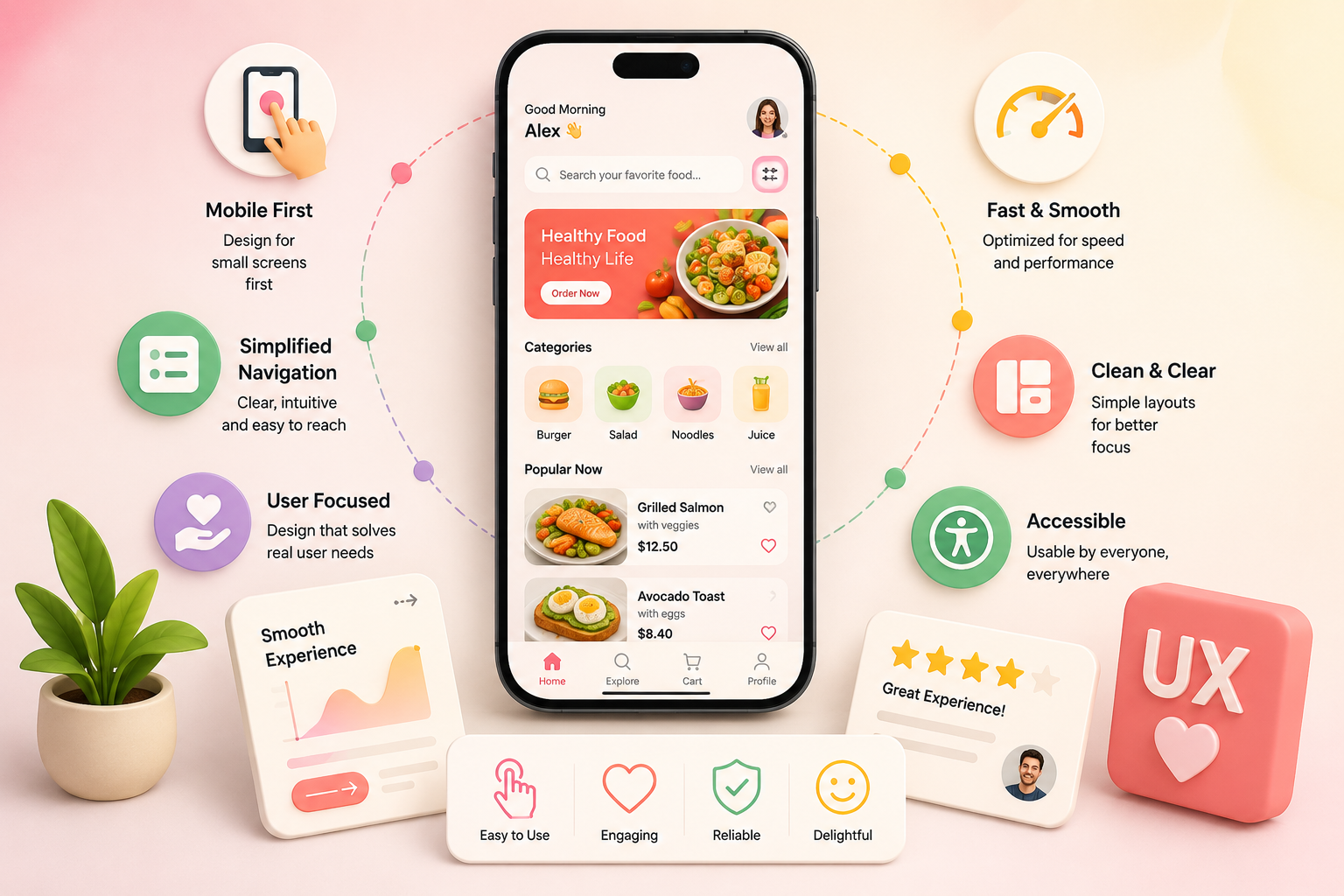
Mobile UX design operates under constraints that do not exist on desktop: limited screen space, touch as the primary input method, variable network conditions, frequent interruptions, and users who are often in motion or distracted by their physical environment. A mobile experience that ignores these constraints and simply shrinks a desktop design onto a smaller screen produces something that technically works but is uncomfortable, slow, and effortful to use.
Thumb zone design is one of the most important practical considerations in mobile UX. Research by Steven Hoober found that the majority of smartphone users hold their phone with one hand and operate it with their thumb. The zones a thumb can reach comfortably without shifting grip are concentrated in the lower centre and lower corners of the screen. Primary actions, navigation, and the most frequently used controls should be designed into these zones rather than placed at the top of the screen where they are hardest to reach one-handed.
Touch target sizing. Interactive elements should be a minimum of 44x44 points on iOS and 48x48 density-independent pixels on Android, with sufficient spacing between targets to prevent accidental activation of adjacent elements. Small touch targets are one of the most consistent sources of mobile user frustration.
Progressive disclosure. Mobile screens cannot present everything at once without overwhelming the user. Progressive disclosure surfaces only the information and options relevant to the current task, revealing more on demand through expansion, drilling down, or separate screens rather than front-loading everything.
Gesture design. Swipe, pinch, long-press, and pull-to-refresh are familiar gestures that feel natural on mobile. Custom gestures that deviate from platform conventions require discovery and learning and should be supplemented with visible alternatives for users who do not know the gesture exists.
Platform conventions. iOS and Android have distinct interaction patterns, navigation paradigms, and component behaviours defined in Apple's Human Interface Guidelines and Google's Material Design respectively. Designs that align with platform conventions feel immediately familiar to users. Those that contradict them require extra cognitive effort and often feel broken.
Offline and error states. Mobile users frequently encounter interrupted connectivity. A well-designed mobile experience handles offline states gracefully, caches essential content where possible, and communicates clearly what is available and what requires a connection rather than silently failing.
Onboarding UX Design
Onboarding is the first experience a new user has with a product, and it disproportionately determines whether they return. A user who reaches the core value of a product quickly and successfully in their first session is significantly more likely to become a regular user than one who is confused, overwhelmed, or bored before they get there. Onboarding UX design is the deliberate architecture of that first experience.
The most common failure in onboarding is front-loading it with information the user does not need yet. Five tutorial screens explaining features before the user has any context for why those features matter is not onboarding. It is friction dressed as help. The most effective onboarding strategies get the user to their first moment of value as quickly as possible and explain things in context when the user actually needs them, not before.
Onboarding Pattern How It Works Best Used When Welcome screens Short sequence communicating value proposition before account creation The product's value is not self-evident on first sight Progressive onboarding Tips and guidance appear contextually as the user encounters each feature Complex products with many features where upfront explanation would overwhelm Interactive tutorial User completes real tasks within the product with guided prompts Products where hands-on doing is faster than explaining Empty state design First-run empty states include guidance and a clear first action Productivity tools where the user creates their own content Sample content Pre-populated example data shows the product in use from day one Products that look empty and unappealing before the user adds their own data Checklist / progress A setup checklist motivates completion through visible progress Products where profile completion or setup significantly improves the experience
UX Proof of Concept (POC): Validating Before You Design
A UX proof of concept is a fast, deliberately narrow exercise built to answer one specific question: does this particular interaction, feature, or approach actually work the way the team believes it will, before any time is invested in full design or development. It's a different tool from the Minimum Viable Product referenced elsewhere on this site — an MVP validates a whole product with real users in the market, while a UX POC validates a single design decision, often internally, before that decision becomes the foundation the rest of the design builds on.
A POC is appropriate when a design relies on an interaction pattern the team hasn't used before, when there's genuine internal disagreement about whether an approach will work, or when a novel gesture, input method, or navigation model needs to be tested against real user behaviour before it's built into every screen that depends on it. Building a POC typically means creating the thinnest possible version of just that one interaction — a single clickable prototype screen, a rough Figma flow, or even a paper sketch tested with a handful of users — rather than a polished or complete experience.
The value of a UX POC is that it's cheap to be wrong at this stage and expensive to be wrong later. Discovering that an unfamiliar navigation pattern confuses users during a fifteen-minute POC test costs an afternoon. Discovering the same thing after the pattern has been built into every screen of a finished product costs a redesign. Treating a proof of concept as a mandatory checkpoint before committing to an unfamiliar or high-risk interaction pattern is one of the cheapest forms of risk reduction available in a design process.
UX and UI Design Patterns
Design patterns are reusable solutions to commonly recurring design problems. They exist because the same problems appear across different products, and the solutions that work well have been discovered, tested, and refined enough times that they represent a reliable starting point rather than a reinvention from scratch. Using established patterns reduces the cognitive load on users who have already learned them from other products and reduces the design effort required to solve problems that have already been solved well.
UX patterns address navigational and flow problems. The breadcrumb trail helps users understand and navigate a site hierarchy. The hamburger menu collapses navigation into a compact format for mobile. The infinite scroll continuously loads content as the user reaches the bottom of the page. The step indicator shows progress through a multi-stage process. The card layout organises multiple items into visually equal, independently navigable units. Each of these is a UX pattern: a structural solution to a structural problem.
UI patterns address visual and interaction problems at the component level. The floating action button provides a persistent primary action on mobile screens. The modal dialog focuses attention on a task that requires completion before proceeding. The toast notification delivers brief, non-blocking feedback at the edge of the viewport. The skeleton screen displays a structural placeholder while content loads, which produces a better perceived performance than a blank space or a spinner. Each UI pattern has documented appropriate use cases, known failure modes, and common implementation mistakes that informed designers actively avoid.
The include/exclude toggle lets users refine a filtered list by explicitly marking criteria to add or remove from results, common in faceted search and advanced filtering interfaces. The scrim, a semi-transparent dark overlay placed behind a modal, navigation drawer, or text sitting on top of an image, improves readability and focuses attention on the foreground element without fully obscuring what's behind it.
Colour Theory in UI Design
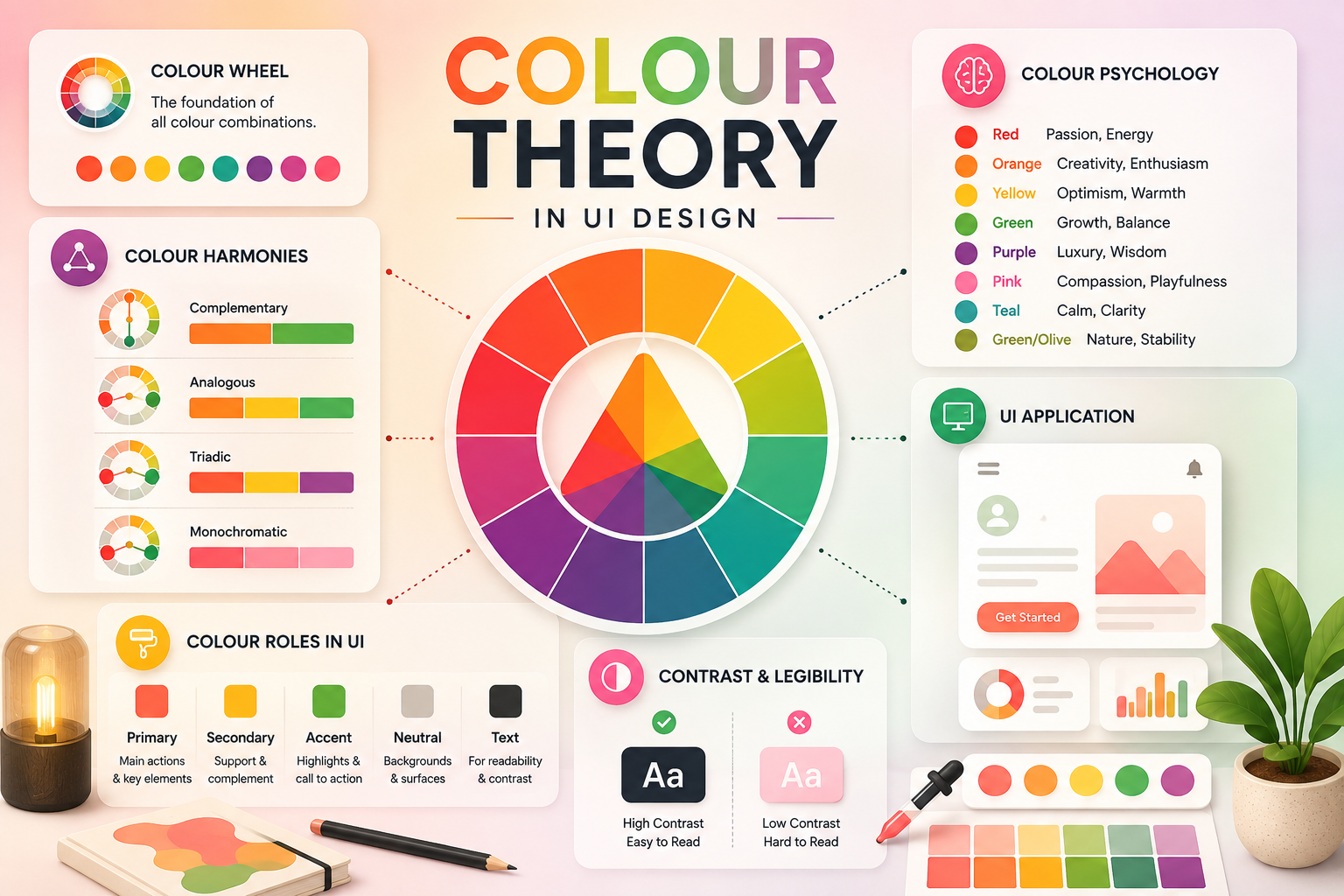
Colour in UI design operates simultaneously as a visual tool and a communication tool. It creates hierarchy, directs attention, establishes brand identity, communicates state and status, and triggers emotional and psychological responses in users. Understanding how colour works mechanically is the prerequisite for using it with intention rather than instinct.
Colour has three properties that designers manipulate independently. Hue is the colour itself: red, blue, green, yellow. Saturation is the intensity or purity of the hue: a fully saturated red is vivid, a desaturated red becomes grey-pink. Value or brightness is the lightness or darkness of the colour. Most digital colour tools, including Figma, work in HSB (hue, saturation, brightness) space. Understanding how adjusting each property independently affects the result gives designers precise control over colour variations rather than relying on arbitrary picks from a colour picker.
A practical framework for building UI colour palettes is the 60-30-10 rule. One colour, typically a neutral or near-neutral, makes up approximately 60 percent of the visual space. A secondary colour accounts for 30 percent. An accent colour, often the most saturated and distinctive, makes up the remaining 10 percent. This ratio creates visual balance and ensures the accent colour retains its ability to draw attention rather than competing with itself across the entire interface.
Colour Scheme Type How It Works Character Common Use Monochromatic Single hue in varying shades and tints Cohesive, minimal, elegant Finance apps, luxury brands, Spotify's green palette Analogous Three colours adjacent on the colour wheel Harmonious, natural, low contrast Lifestyle brands, editorial products Complementary Two colours directly opposite on the colour wheel High contrast, vibrant, attention-grabbing CTAs and accents where maximum contrast is needed Triadic Three colours evenly spaced on the colour wheel Vibrant, playful, complex to balance Consumer apps, games, creative tools Split-complementary One base colour plus two colours adjacent to its complement High contrast with more variety, easier to balance than triadic Products needing visual interest without full triadic complexity
Colour psychology is real but should be applied with appropriate caution. While blue broadly signals trust and stability, red signals urgency or danger, and green signals success or permission, these associations are culturally variable and contextually dependent. The more reliable rule is semantic colour consistency: within a product, a colour should always mean the same thing. If red is used to indicate errors, it should not also appear as a decorative accent on promotional banners. Mixed semantic signals require users to spend cognitive effort resolving them rather than reading them instantly.
Typography in UI Design
Typography in UI design is not the selection of a beautiful typeface. It is the systematic organisation of text across an interface to serve readability, establish hierarchy, and communicate tone. An interface's typographic system determines whether users can scan a page and immediately understand what is important, what is supporting detail, and what is secondary. A product with excellent visual design but poor typographic hierarchy forces users to read everything at the same weight before they can assess what matters.
A typographic scale establishes the size relationships between different text levels in the UI: the headline size, the subheading size, the body text size, the caption size, and any supplementary levels the product requires. These sizes should follow a logical ratio rather than arbitrary increments. Common type scale ratios include the major third (1.25), the perfect fourth (1.333), and the golden ratio (1.618). Each produces a different visual character: smaller ratios produce a compact, dense hierarchy, larger ratios produce a dramatic one with strong visual contrast between levels.
Typographic Property What It Controls UI Guidance Font size Perceived importance and hierarchy level Body text minimum 16px for web, 14px floor for mobile secondary text Line height Breathing room between lines, readability of paragraphs 1.5 for body text, 1.2 to 1.3 for headings Line length Eye tracking comfort during reading 45 to 75 characters per line for comfortable body text reading Font weight Emphasis and hierarchy without size changes Use a maximum of two to three weights from a single family to avoid chaos Letter spacing Spacing between individual characters Wider tracking for uppercase labels and small caps, tighter for large display text Typeface choice Tone, readability, and brand personality of the interface Sans-serif for most UI contexts; serif for editorial products where appropriate
Limiting a UI typographic system to one or two typeface families is a practical discipline that produces more consistent results than using multiple fonts for their individual aesthetic appeal. Most strong UI typographic systems use a single sans-serif family with multiple weights for all interface text, reserving a second typeface for display headlines only if the product's identity strongly calls for it. The restraint produces coherence. Multiple typefaces without a clear system produce visual noise that undercuts rather than enhances the design.
How We Work
At Munix Studio, the concepts covered in this guide are not reference material we consult occasionally. They are the design standards we apply to every product we build. Responsive layouts are tested at every breakpoint. WCAG contrast ratios are verified in Figma before a single component goes into development. Dark mode is designed as a first-class theme rather than an inverted afterthought. Typography systems are established before any screens are populated. And onboarding flows are treated as the first impression that determines whether a product retains the users it acquires.
Our designers and developers work from shared design systems so the decisions made at the design stage are faithfully preserved in the built product. A typographic scale defined in Figma is implemented as design tokens in the codebase. A colour palette with defined contrast ratios is enforced by a component library rather than manually verified per screen. The consistency is structural, not aspirational.
UI/UX Design and Development Services From Munix Studio
Understanding these concepts is the starting point. Applying them consistently to a real product across every screen, every state, and every device is where the craft lives. Munix Studio builds products where design and development are a single discipline rather than two separate phases.
UI/UX Design — Accessible, responsive, system-driven design across every screen and state, with WCAG compliance, dark mode, and design systems built into every project from day one.
Website Development — Custom websites built on React and Next.js where the typographic scale, colour tokens, and component library from design are implemented in code, not approximated.
App Development — Mobile applications built with platform-appropriate patterns, thumb-zone navigation, accessible touch targets, and onboarding flows validated with real users before launch.
Maintenance and Support — Ongoing accessibility audits, design system updates, and responsive testing as products evolve to ensure quality standards are maintained throughout the product lifecycle.
Frequently Asked Questions
Ready to Get Started?
UI/UX Design
Accessible, responsive, system-driven design across every screen and state, with WCAG compliance, dark mode support, and design systems built into every project from day one.
Explore UI/UX DesignRelated Articles
What Is UI/UX Design? A Complete Guide for Businesses and Founders
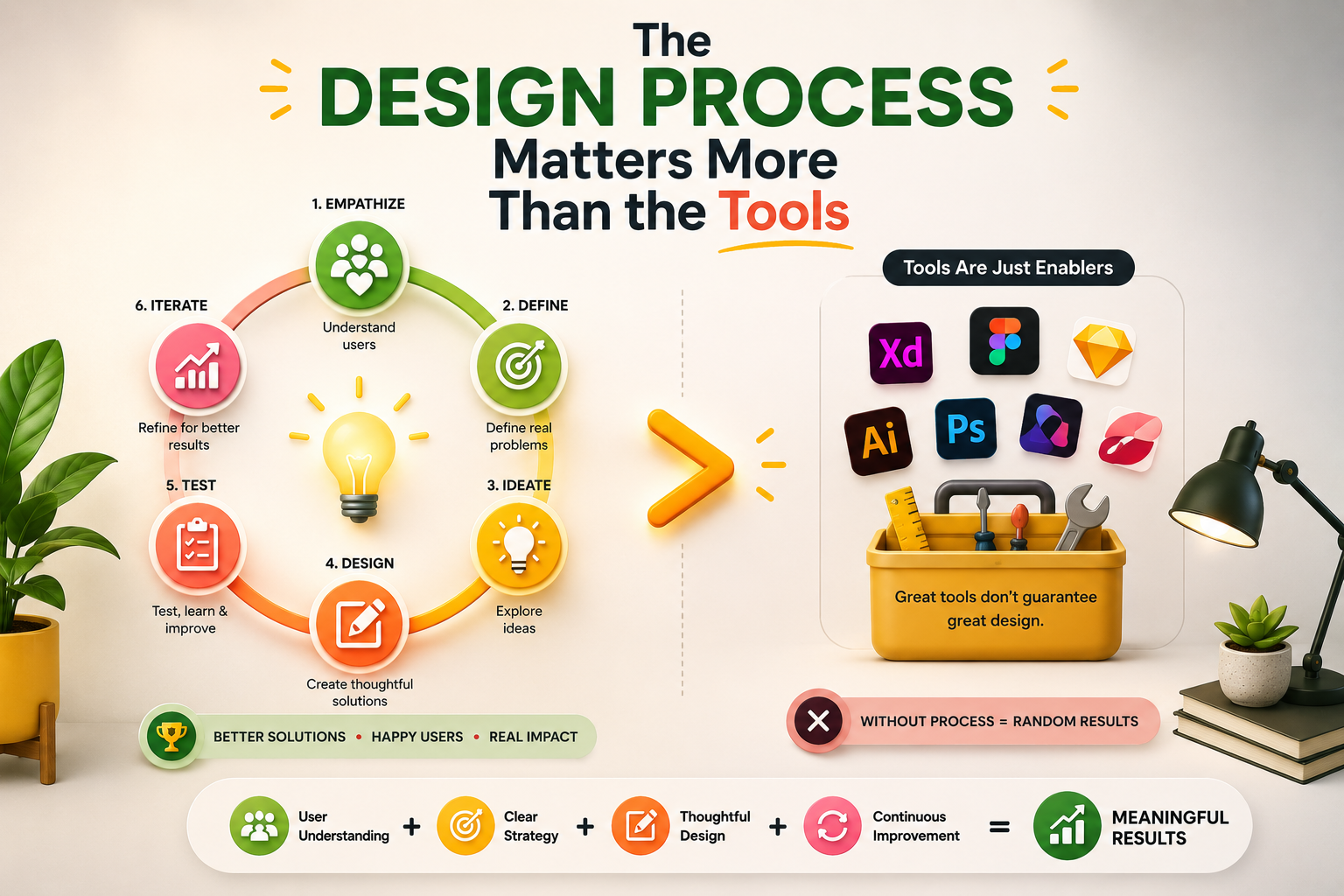
The UI/UX Design Process: Every Stage, Method, and Tool Explained
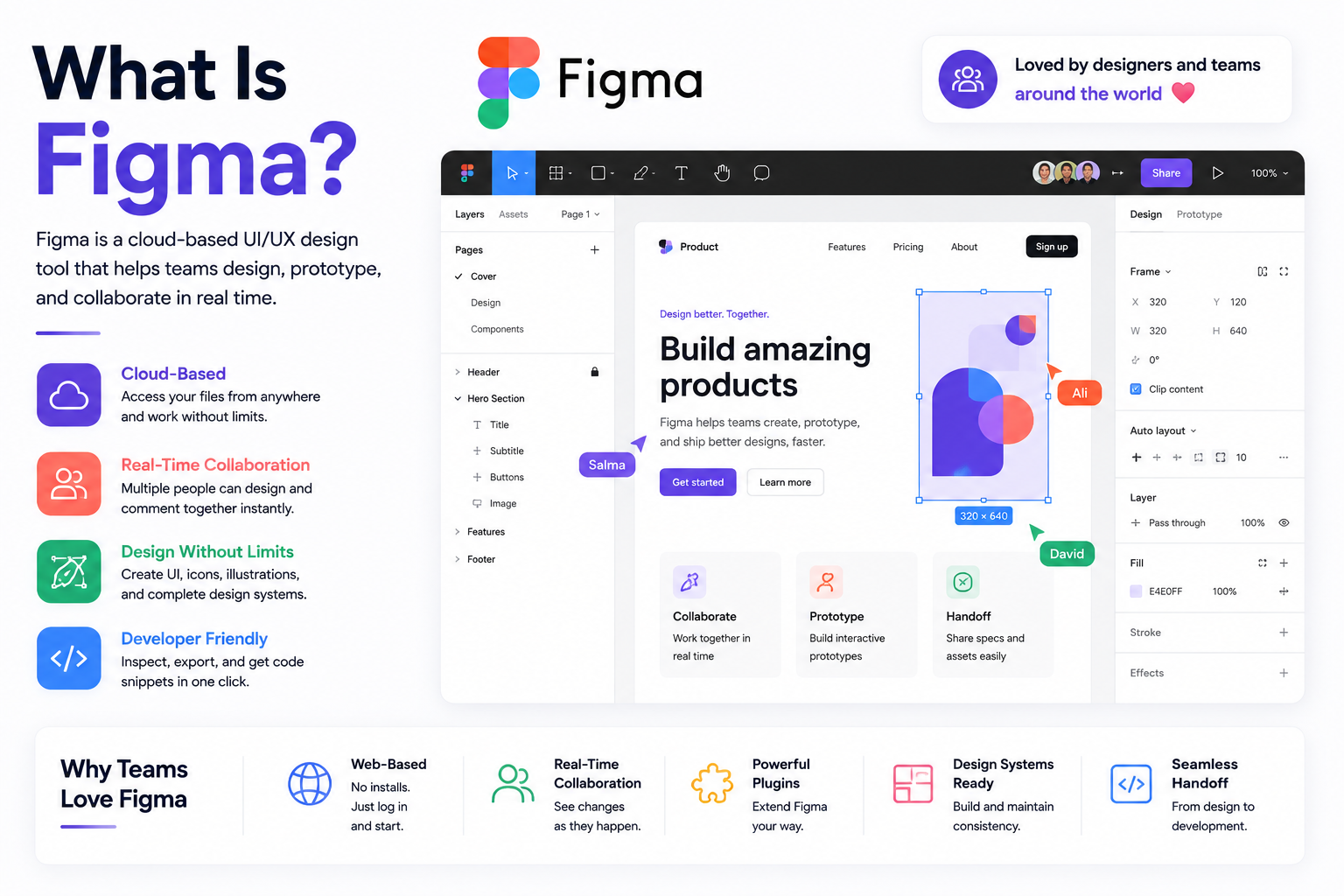
Best UI/UX Design Tools in 2026: Figma, Prototyping, and Beyond
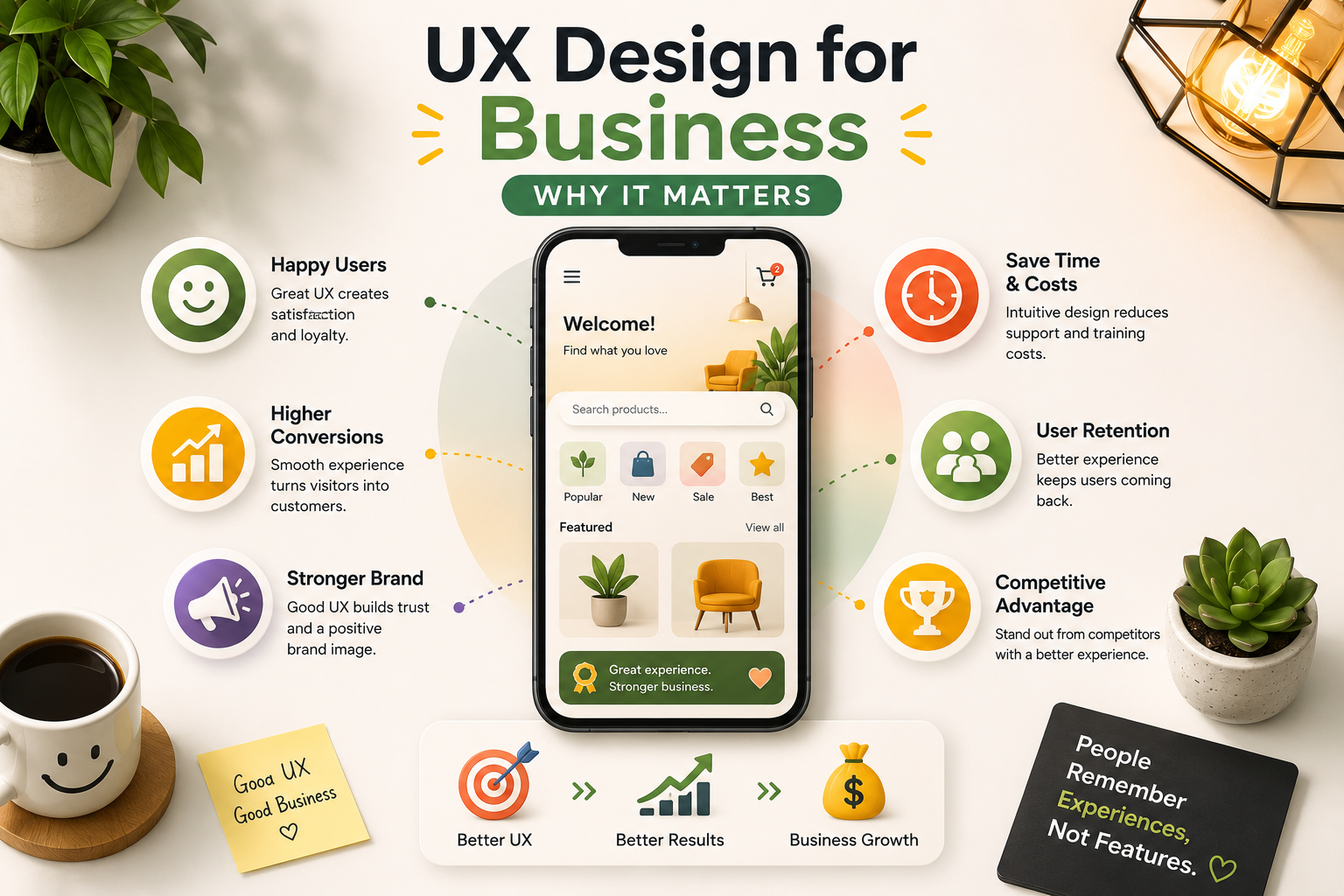
UX Design for Business: Why It Matters, What It Costs, and How to Get It Right