The tools a design team uses shape how fast they work, how well they collaborate, and how accurately the final product matches what was designed. Choosing the wrong tool does not make good design impossible, but it introduces friction at every stage of the process. Choosing the right tool removes that friction and lets the team focus on the actual design problem rather than working around software limitations.
This guide covers the most important UI/UX design tools available in 2026, what each one does well, where each one falls short, and how to decide which combination is right for your team and project type. It covers Figma in depth, the Figma versus Adobe XD comparison that most teams face, prototyping tools, user research tools, and the best free options available for teams working with limited budgets.
What Is Figma?
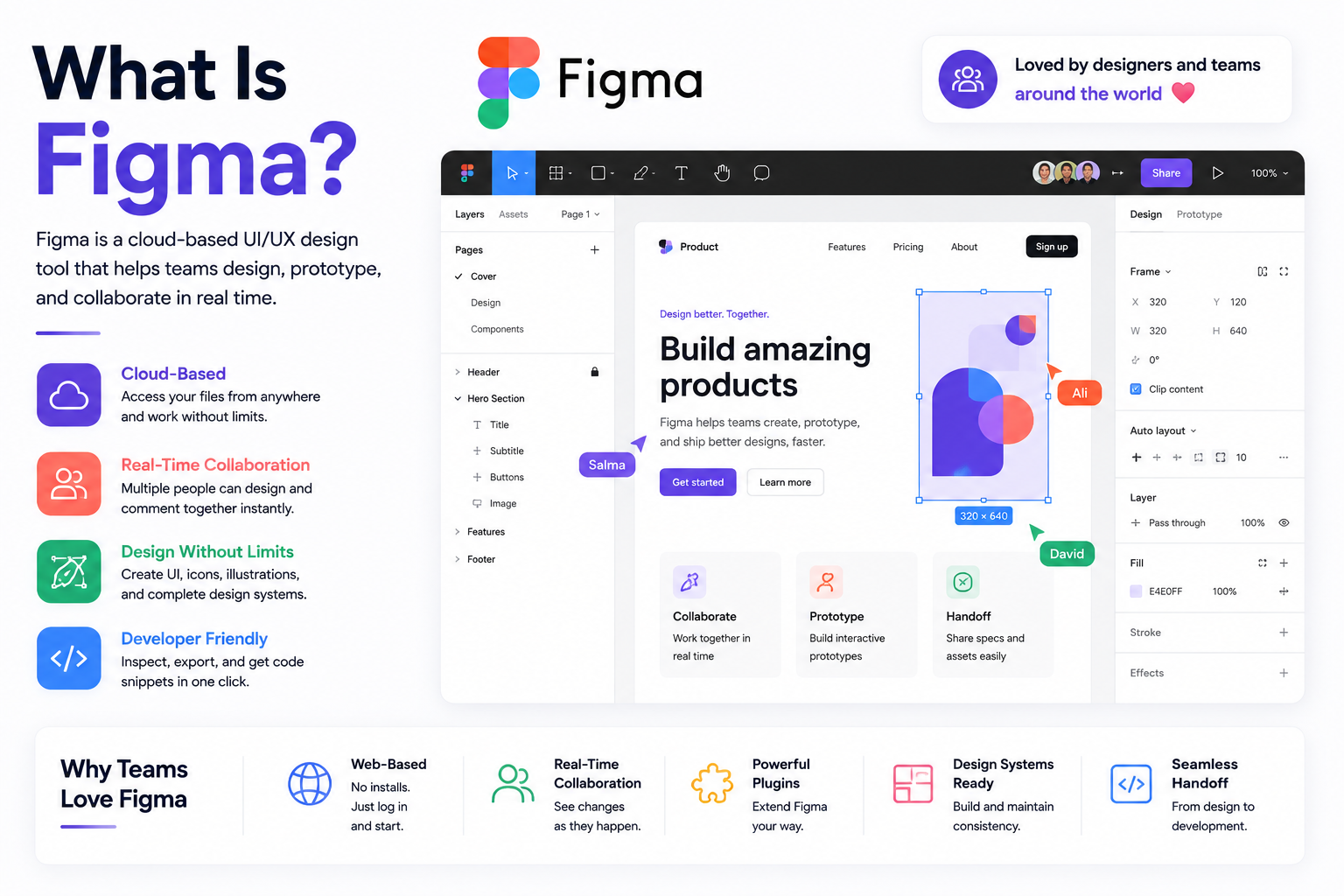
Figma is a browser-based interface design tool used by the majority of professional UI/UX designers worldwide. It runs in the browser without requiring installation, works on any operating system including Windows, macOS, and Linux, and allows multiple team members to work on the same file simultaneously in real time. It covers wireframing, visual design, interactive prototyping, design system management, and developer handoff all within a single platform.
Figma was founded in 2012 and grew to become the dominant design tool in the industry by the late 2010s, largely because it solved the collaboration problem that plagued earlier tools. Before Figma, design files lived on individual designers' machines and sharing them required exporting static images or sending files back and forth. Figma made the design file a live, shared document that anyone on the team could view, comment on, or edit from any device with a browser.
Adobe announced an acquisition of Figma in 2022, though the deal faced regulatory challenges. As of 2026, Figma continues to operate independently while some integration with Adobe's Creative Cloud ecosystem is ongoing. The acquisition has not materially changed Figma's product direction or pricing structure for most users.
Figma for Beginners: What You Need to Know
Figma has a free plan that covers most of what a beginner or solo designer needs. The free tier allows up to three active projects and full access to core design and prototyping features. For someone learning UI/UX design, starting with Figma's free plan is the right move. It is the tool most employers and clients expect designers to use, its community resources and tutorials are extensive, and its learning curve is lower than most professional design tools.
The core concepts a beginner needs to understand in Figma are frames (the containers that represent individual screens), components (reusable design elements like buttons and navigation bars), auto layout (which makes elements resize and reposition automatically), and prototype connections (the links between frames that simulate navigation). Mastering these four concepts covers the vast majority of what real UI/UX work in Figma involves on a day-to-day basis.
Figma vs Adobe XD: The Full Comparison
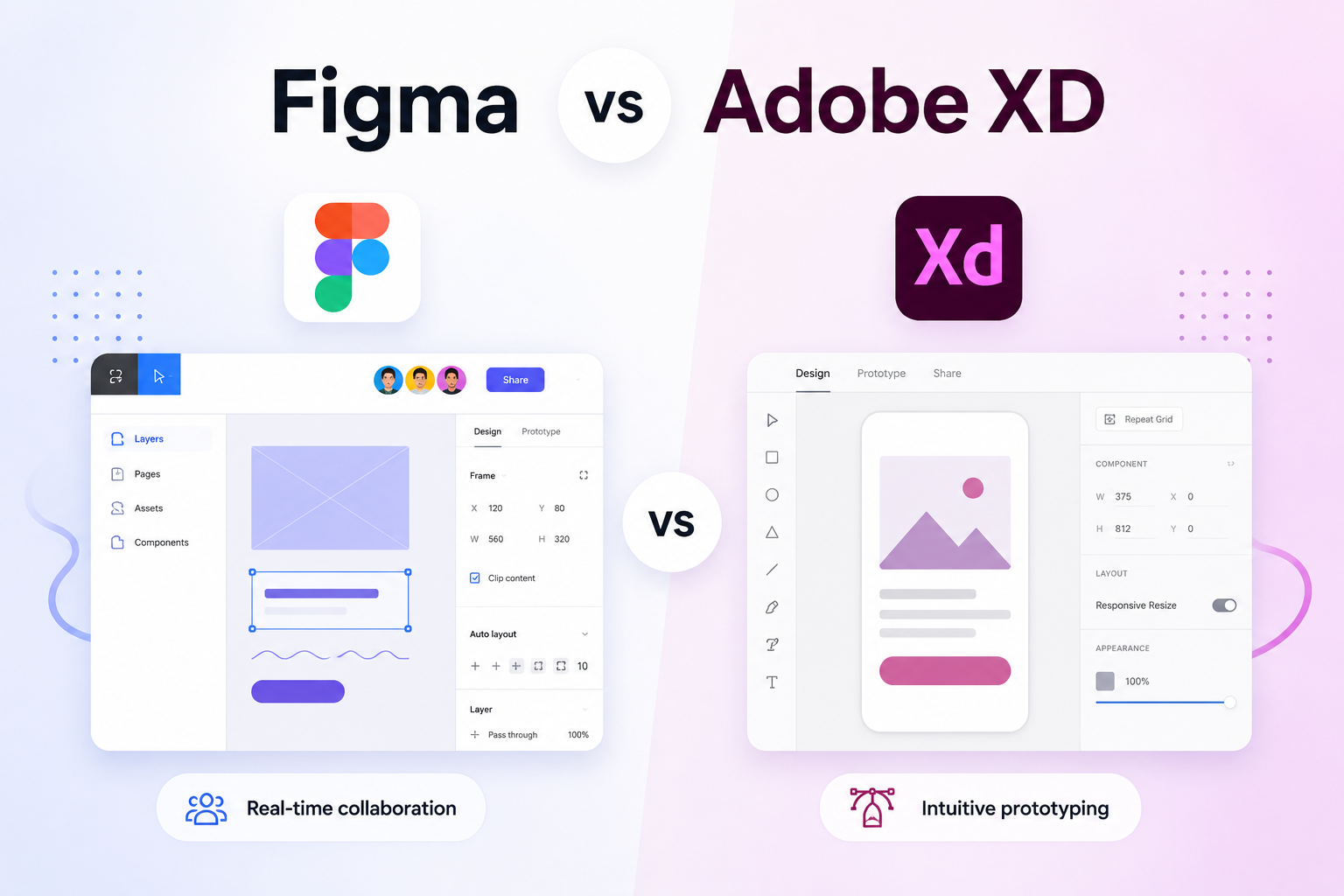
Adobe XD was Adobe's dedicated UI/UX design tool, launched in 2016 as a competitor to Sketch and later Figma. It is part of the Adobe Creative Cloud suite and integrates closely with Photoshop, Illustrator, and other Adobe products. For teams already working within the Adobe ecosystem, XD offered a natural extension of their existing workflow. In 2026, Adobe XD is in what the industry describes as maintenance mode, meaning it is receiving security updates but not significant new feature development. Figma has become the clear default choice for most professional teams.
Factor Figma Adobe XD Platform Browser-based, works on any OS Desktop app for macOS and Windows only Real-time collaboration Native, core feature since launch Available but secondary to core workflow Free plan Yes, up to 3 projects 7-day trial only, then requires Creative Cloud subscription Pricing From $12 per editor per month Included in Creative Cloud from $20.99/month Plugin ecosystem 1,000+ plugins covering automation, accessibility, content Smaller ecosystem, growth has stalled Design systems Strong component and variable system Adequate but less flexible Offline use Limited, requires internet for full functionality Fully offline capable Adobe integration Growing via acquisition, not yet seamless Native integration with Photoshop and Illustrator Active development Frequent major updates Maintenance mode as of 2023 Best suited for Remote teams, startups, product design, most professional workflows Teams deeply embedded in Adobe Creative Cloud
The verdict for most teams in 2026 is straightforward. Figma is the better choice for the vast majority of UI/UX work. Its collaboration model, plugin ecosystem, design system capabilities, and active development make it the stronger long-term investment. Adobe XD remains a reasonable choice only if your team already relies heavily on Adobe Creative Cloud and the workflow integration with Photoshop or Illustrator is genuinely valuable to your process. For anyone starting fresh, Figma is where the industry is and where it is going.
Figma Alternatives in 2026
Adobe XD is the most commonly asked-about Figma alternative, but it is not the only one worth knowing about. Depending on what a team actually needs — open-source flexibility, a specific prototyping capability, or a Windows-native tool with lower hardware requirements — a handful of other tools are worth understanding before defaulting to Figma.
Justinmind is worth calling out specifically because it solves a narrower problem than Figma does. Where Figma is a general-purpose design and prototyping platform, Justinmind is built specifically around high-fidelity prototyping with conditional logic — prototypes that behave differently based on simulated user input, without needing custom code. Teams that need to demonstrate complex, branching user flows to stakeholders sometimes reach for Justinmind over Figma for this reason alone, though for the majority of standard product design work, Figma's native prototyping now covers the same ground more efficiently within a single tool.
Penpot deserves more attention than it typically gets in these comparisons. As the most mature open-source alternative to Figma, it is genuinely free with no seat limits, and can be self-hosted for organisations with data residency or vendor-independence requirements — something none of the closed-source tools in this list offer. Its interface closely mirrors Figma's, which shortens the learning curve for anyone migrating.
Sketch remains relevant primarily for long-established Mac-only teams with existing component libraries built up over years. For any team starting fresh, or any team not exclusively on macOS, Sketch is a harder recommendation to make today than it was five years ago — its collaboration model never matched Figma's, and that gap has only widened.
The practical takeaway: for the overwhelming majority of teams evaluating alternatives to Figma in 2026, the honest answer is that Figma remains the better default. The exceptions are narrow and specific — Penpot for organisations that need self-hosting or a fully open-source stack, Justinmind for teams whose prototypes require genuinely complex conditional logic, and Adobe XD or Sketch only where an existing tooling investment makes switching costly.
The Best UI Design Tools in 2026
UI design tools are used to create the visual layer of digital products. They need to support vector editing, component management, responsive layout, and ideally prototype interaction. The options below cover the most widely used tools across different team types and project contexts.
Tool Best For Free Plan? Platform Figma Collaborative UI design, design systems, most professional workflows Yes Browser, macOS, Windows Sketch Mac-only teams, strong vector editing, established plugin ecosystem No macOS only Adobe XD Teams already using Adobe Creative Cloud Trial only macOS, Windows Framer Advanced interactive prototypes with code components Yes Browser Webflow Design and build marketing sites without code Yes Browser
The Best UX Design Tools in 2026
UX design tools cover a broader set of activities than pure visual design. They include tools for user research, journey mapping, wireframing, usability testing, and collaboration. Not all of these activities require specialist software, but having the right tool for each stage speeds up the work and improves the quality of the output.
Tool Stage It Covers Free Plan? What Makes It Worth Using Miro Research, journey mapping, workshops Yes Infinite canvas for collaborative mapping and ideation exercises Maze Usability testing Yes (limited) Unmoderated usability testing directly from Figma prototypes Lookback Moderated usability testing Trial only Live and recorded moderated sessions with built-in observer tools Balsamiq Low-fidelity wireframing Trial only Intentionally rough wireframes that keep stakeholder feedback focused on structure Hotjar Post-launch UX research Yes Heatmaps, session recordings, and feedback tools on live products Optimal Workshop Information architecture testing Yes (limited) Card sorting and tree testing tools to validate navigation and IA decisions
The Best Prototyping Tools in 2026
Prototyping tools allow designers to create interactive simulations of their designs before development begins. The best prototyping tools for a given project depend on the level of fidelity required and how realistic the interactions need to be. Figma handles the vast majority of prototyping needs for most product teams. Specialist tools are worth considering when a project requires advanced animation, code-level interactions, or native mobile behaviour that Figma cannot simulate convincingly.
Tool Fidelity Level Best Use Case Free Option Figma Low to high Standard product prototyping for web and mobile across all project types Yes ProtoPie High Complex conditional logic, sensor interactions, and multi-screen advanced animations Trial only Framer High Prototypes with real code components and near-production level interactions Yes Marvel Low to mid Quick clickthrough prototypes for non-technical stakeholder reviews Yes UXPin High Design systems with real React components bridging design and development Trial only
UI/UX Design Tools for Developers and No-Code Teams
Not every team follows the traditional designer-hands-off-to-developer workflow. Full-stack developers working without a dedicated designer, and teams building products without a traditional engineering handoff at all, need a different set of tools — ones that either generate usable code directly or remove the code step entirely.
Design Tools Built for Developers
Full-stack developers evaluating design tools are usually optimising for one thing: how directly the output translates into working code. Three tools stand out here.
Framer — Combines visual design with real code components, and can publish directly to a live, production-grade website without a separate build step. The closest thing to a design tool that a developer can treat as a lightweight framework rather than a mockup tool.
UXPin — Uses actual React components inside the design canvas, meaning what's designed is built from the same components that ship in production. This closes the gap between design file and codebase more completely than any tool that exports code after the fact.
Figma (with Dev Mode) — Figma remains the right starting point even for developer-led teams. Dev Mode, covered earlier in this guide's developer handover section, gives a developer exact specs, spacing, and platform-specific code snippets directly from the design file without needing design software expertise to extract them.
For developers who want to move from design directly into a codebase without hand-coding the interface layer, Locofy and Anima are worth knowing about specifically. Both convert Figma designs into React, HTML/CSS, or React Native code automatically, which suits full-stack developers who can review and refine generated code far faster than they can write UI from scratch, but who don't want to own the visual design process personally.
No-Code and Drag-and-Drop Tools
A separate but related audience is looking for tools that remove code from the process entirely, typically for building and launching a product interface without an engineering team at all, or for producing throwaway prototypes fast enough to test an idea before committing engineering resources.
Webflow — Already covered in this guide's UI tools table, Webflow's real strength here is that it produces a fully launchable, production website with no code required, making it the most complete no-code option for teams whose end goal is a live site rather than a prototype.
Marvel — For quick, disposable clickthrough prototypes aimed at non-technical stakeholders, Marvel's drag-and-drop simplicity trades design depth for speed, which is exactly the right trade when the goal is a fast internal review rather than a polished deliverable.
Framer — Appears again here because it genuinely straddles both categories: capable enough for a developer to treat as code-adjacent, simple enough for a non-technical team member to build a working prototype without writing anything.
The choice between these two paths comes down to intent. A developer-led team building toward a real product should lean toward Figma with Dev Mode, or Framer and UXPin where a tighter design-to-code loop matters. A team validating an idea or building a simple site with no engineering resource at all should lean toward Webflow or Marvel, where the tool itself is producing the final output rather than a blueprint for someone else to build from.
Free UX Design Tools Worth Using
A significant portion of professional UX work can be done with free tools, particularly in the early stages of a project or for individuals and small teams with limited budgets. The following tools all have genuinely useful free plans rather than heavily restricted trials.
Figma (free plan) — Three active projects, full design and prototyping features, community file access. This is the most valuable free tool available to any designer starting out.
FigJam (free plan) — Figma's collaborative whiteboard tool for journey mapping, affinity diagrams, and design thinking sessions. Three boards on the free tier.
Miro (free plan) — Three editable boards with the full feature set. Strong for research synthesis, journey maps, and collaborative workshops.
Maze (free plan) — One active study per month with basic analytics. Enough to run usability tests on small projects.
Hotjar (free plan) — Heatmaps, session recordings, and feedback polls on a live site. The free tier covers up to 35 daily sessions, which is sufficient for smaller sites.
Optimal Workshop (free plan) — One study per month covering card sorting and tree testing. Useful for validating information architecture decisions.
Google Forms — Free survey tool with unlimited responses. Adequate for gathering quantitative research data when a dedicated research tool is not available.
Whimsical (free plan) — Wireframing, flowcharts, and mind mapping with a clean, fast interface. Four projects on the free tier.
How to Choose the Right Design Tool Stack
Most design teams do not use a single tool for everything. They use a combination of tools that cover different stages of the process and different types of work. The stack a team needs depends on the type of projects they deliver, the size of the team, and whether designers work closely with developers or hand off to a separate engineering team.
For most product design teams, a practical starting stack is Figma for design and prototyping, Miro or FigJam for research workshops and journey mapping, and Maze or Lookback for usability testing. That combination covers the full UX design process without requiring teams to learn multiple complex tools or pay for overlapping functionality. Add Hotjar for post-launch behavioural data once the product is live.
The biggest mistake teams make with design tooling is adopting too many tools at once before they have mastered any of them. A team that knows Figma deeply will consistently outperform one that uses five partially understood tools. Invest in depth before breadth, and add specialist tools only when a genuine gap in capability is clearly identified.
For teams maintaining a design system across multiple products or a large component library, dedicated design system tools become worth adding once Figma's native library features stop scaling with the team. Zeroheight turns a Figma library into a browsable, documented design system site that both designers and developers can reference. Supernova and Tokens Studio manage design tokens — the underlying values for color, spacing, and typography — so that a single source of truth stays synchronized between Figma and the codebase, rather than tokens drifting out of sync as both evolve independently.
Related Services
Having the right tools is only part of the picture. Using them well across the full design process, from user research through to developer handover, is what determines the quality of the final product. Munix Studio uses Figma across all UI/UX design work and delivers complete design packages that give development teams everything they need to build accurately.
UI/UX Design — Professional UI/UX design services using Figma for wireframing, visual design, interactive prototyping, and complete developer handover across web and mobile projects.
Website Development — Custom website development built directly from Figma design files, preserving every detail of the design in the final implemented product.
App Development — Mobile and web app development with in-house UI/UX design, meaning the design and build phases use the same tools and the same team throughout.
Dedicated Developers — Hire dedicated UI/UX designers who are proficient in Figma, prototyping, and the full design process to work exclusively on your product.
Frequently Asked Questions
Related Articles
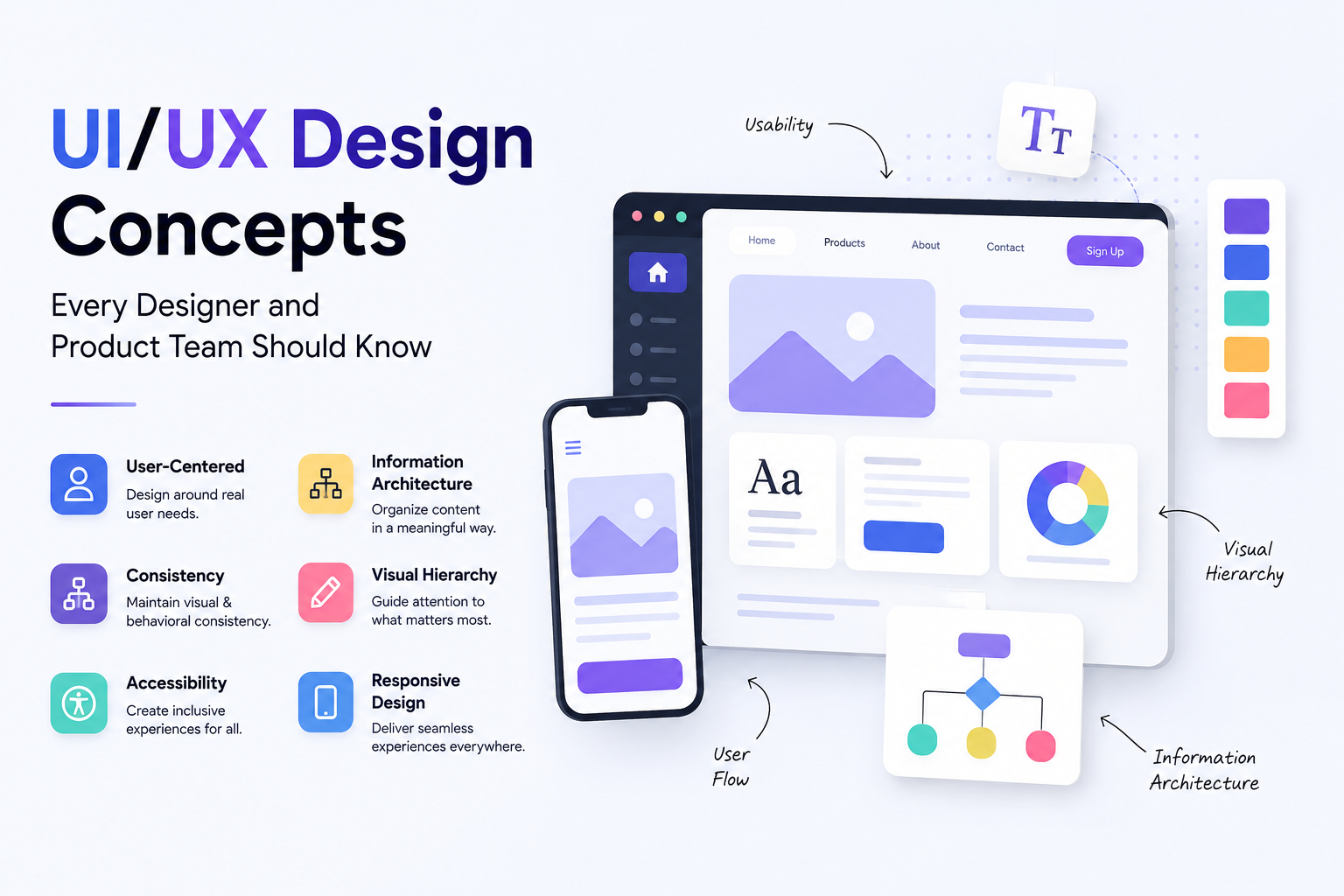
What Is UI/UX Design? A Complete Guide for Businesses and Founders
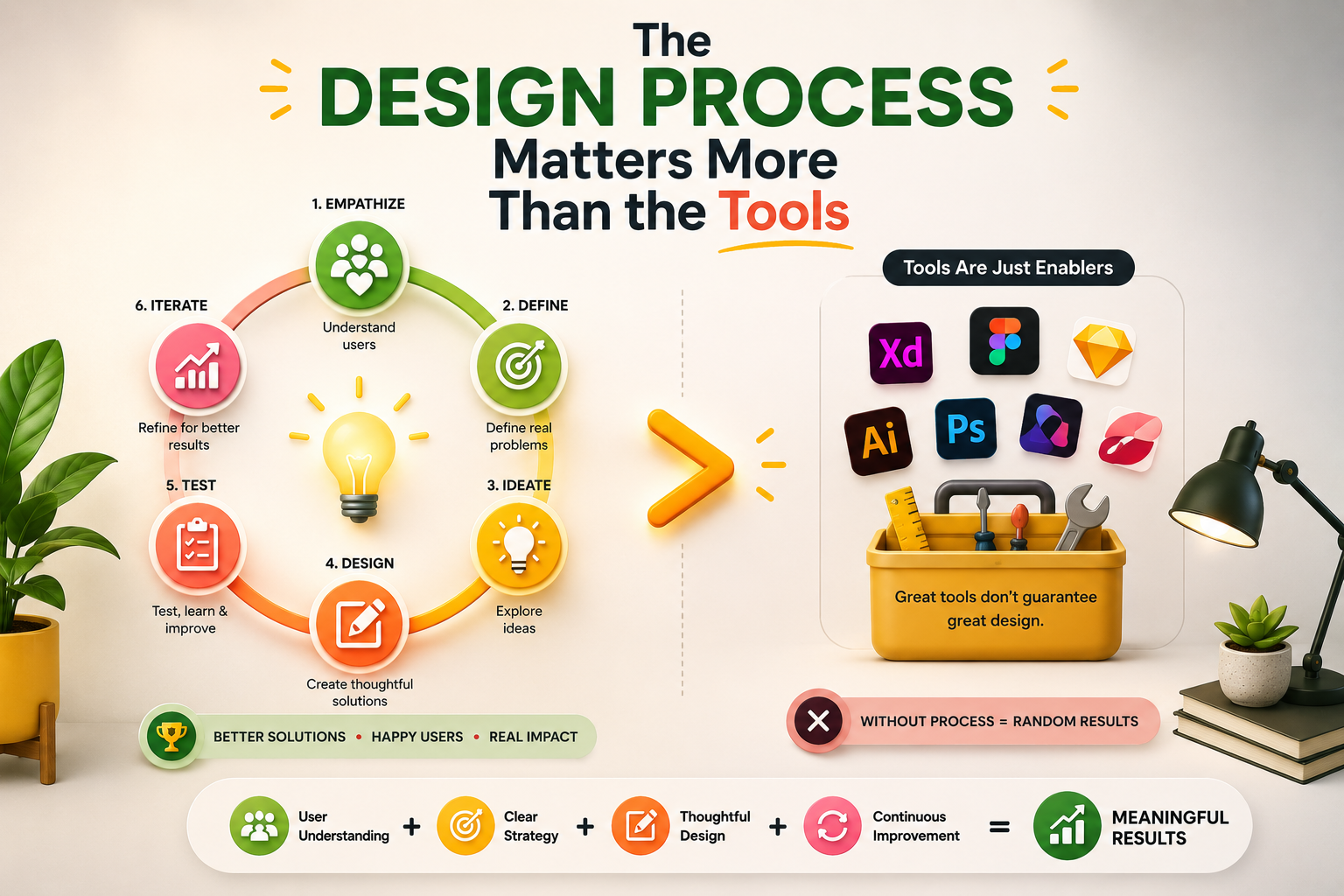
The UI/UX Design Process: Every Stage, Method, and Tool Explained
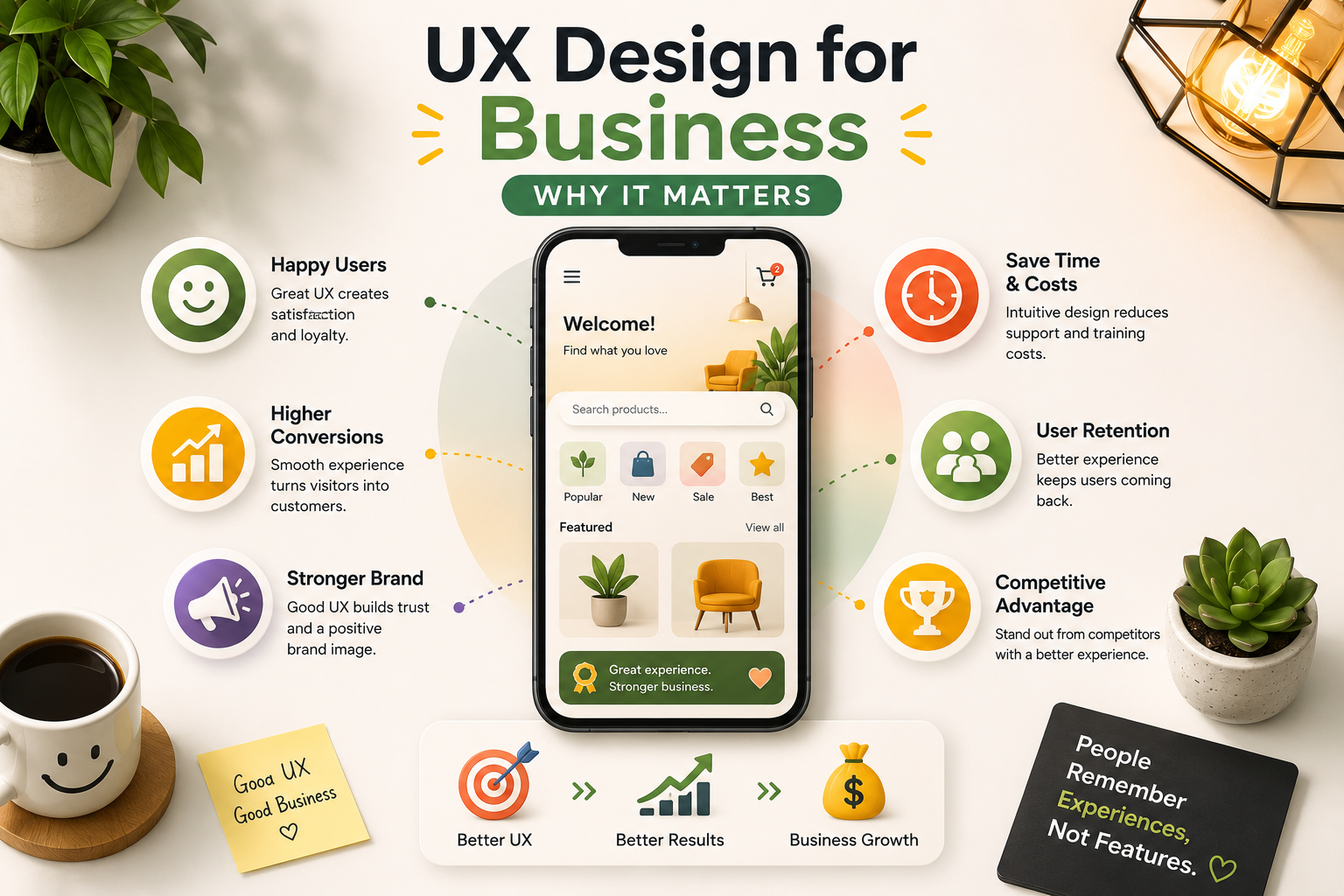
UX Design for Business: Why It Matters, What It Costs, and How to Get It Right
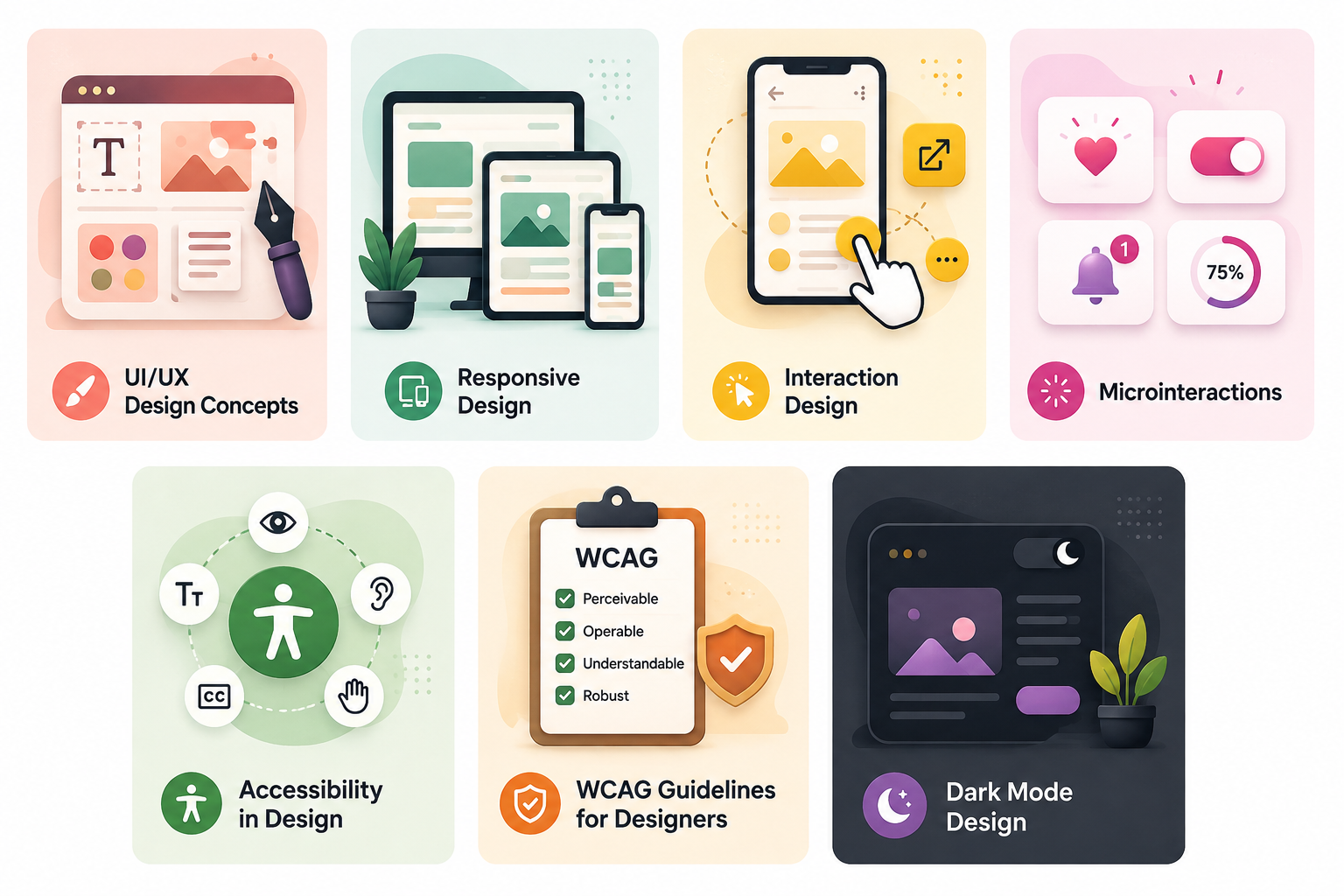
UI/UX Design Concepts Every Designer and Product Team Should Know